Territope User Guide
1. Promotional Text
Map your world with Territope! Define Areas,
drop Pins, add notes, get weather, directions, & distances. Share Areas via
Access Codes.
2. Description
Territope: Map Your World, Share Your
Discoveries
Organize, explore, and share your adventures
with Territope! Define custom regions ("Areas") and pinpoint key
locations ("Pins") within them. Whether you're planning a road trip,
documenting local hotspots, or collaborating on a project, Territope empowers
you to map your world with ease.
Key Features:
·
Define
Your Territories: Create custom "Areas" and give them descriptive
names. Perfect for marking hiking trails, project sites, or your favorite
neighborhood spots.
·
Pinpoint
Your Points of Interest: Add "Pins" to your Areas by simply tapping
the map or searching for specific locations. Name your Pins, add detailed
notes, and even set event dates.
·
Weather
at Your Fingertips: Get instant weather forecasts for any Pin, so you're always
prepared for your next adventure.
·
Navigate
with Ease: Get driving directions to any Pin and easily calculate distances
between locations. See the distance to all Pins from a selected Pin, or the
distance from any selected Pin to all other Pins.
·
Stay
Organized: List all your Pins or filter them by Area for quick access. Never lose track of your important locations.
·
Calendar
Integration: Seamlessly add Pin event dates to your device's calendar, so you
never miss a thing.
·
Effortless
Sharing: Export entire Areas (including all associated Pins) to the cloud and
receive a unique Access Code. Share this code with friends, family, or
colleagues, allowing them to instantly import your meticulously mapped
territories. The following Access Codes
can be used to load sample areas: SANFRANCISCO, BRAZEN, COASTAL, ITR.
·
Offline
Access: Your data is stored locally on your device, ensuring access even
without an internet connection.
·
Trip
Planning Made Easy: Territope is the perfect tool for planning your next
adventure. Map out your route, mark points of interest, and share your
itinerary with travel companions.
Download
Territope today and start mapping your world!
3. App Views
|
Screenshot |
Description |
|
|
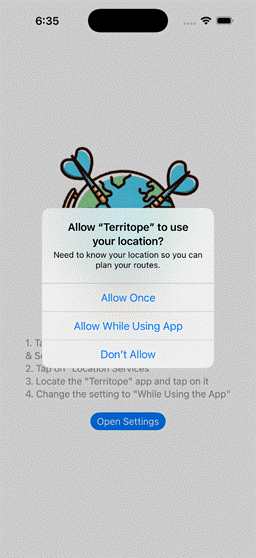
Initial
View The
initial view will request access to your location. Your
location is used for planning routes and for calculating distances to Pins
(placemarks) that you have created. Tap
“Allow While Using App” so that this view is not displayed the next time you
run the App. |
|
|
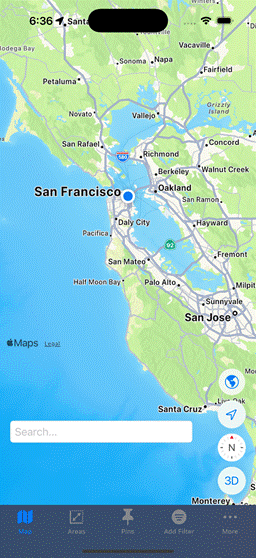
Map View (No Pins) After
allowing the App to see your location the Map view will be displayed. The
first time this is displayed there will be no Pins displayed. This
view can also be reached by tapping on Map on the tab view. Using
the search box you can search for a location.
For example, search for Starbucks. Pins
will be displayed on the map at the locations found within the map area. |
|
|
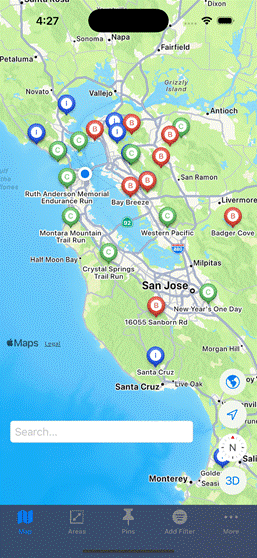
Map View (With Pins) When
you have defined Areas and added Pins, they will all be displayed on the Map
view. |
|
|
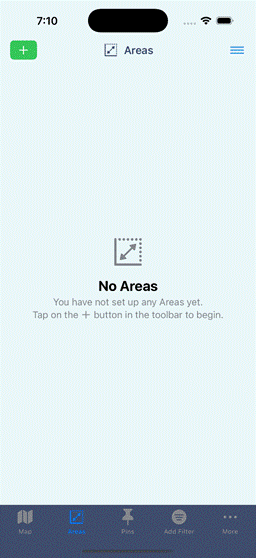
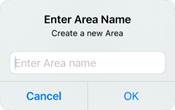
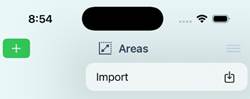
Areas
View (No Areas) The
Areas view lists all Areas that have been created. Initially there will be no defined areas. Tap
on the
To
import an Area, tap on the The
Import view will be displayed. |
|
|
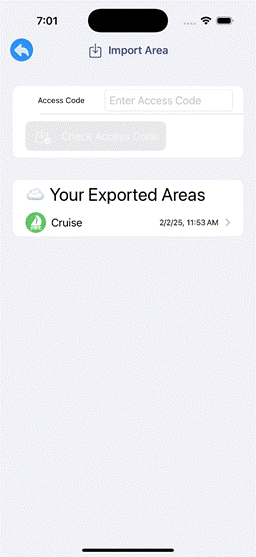
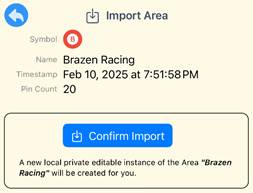
Import View Tap
in the text input box and enter the access code, then tap on Alternatively
tap on a previously exported Area in the Your Exported Areas
section.
|
|
|
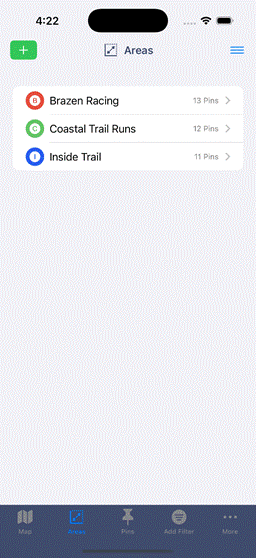
Area View (With Areas) To
delete an Areas, swipe left. Tap
on one of the Areas to see the area pins on a map. |
|
|
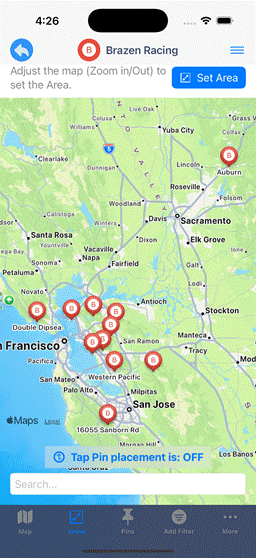
Area Map The
Area map is displayed by tapping on one of the Areas in the Area view. You
can set/adjust the size of the Area by zooming in or out on the map and then
tapping To
view the Area details tap on the To
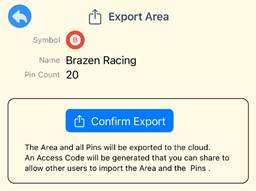
export the Area, tap on the
|
|
|
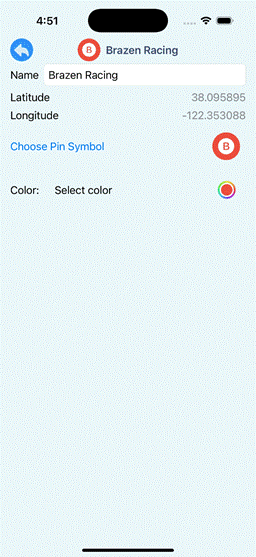
Area
Detail View Tap
in the Name to change the name. Tap
on the Pin Symbol to choose a symbol. Tap
on the color to choose the Pin color. |
|
|
Pin
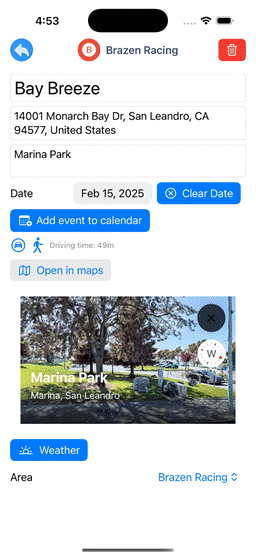
Details View The
Pin detail’s view will be displayed when you tap on a pin in the Map View,
Area Map View or Pins List View. To
delete the pin, tap on the To
set the date, tap on the date. To
add the date to your Apple Calendar, tap on To
use Apple Maps to navigate to the pin from your current location, tap on To
view the weather forecast at the pin (using Apple Weather Data), tap on To
move the pin to a different Area, tap on the Area picker. |
|
|
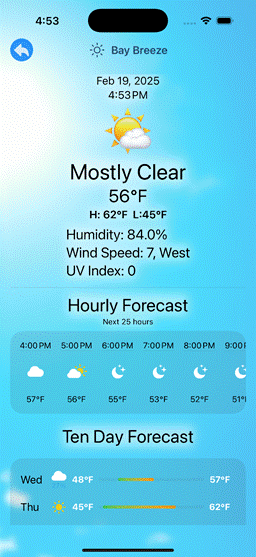
Weather
View The
weather view displays the weather for the pin location. The view shows the current weather, an
hourly forecast for the next 25 hours and the ten day
forecast. |
|
|
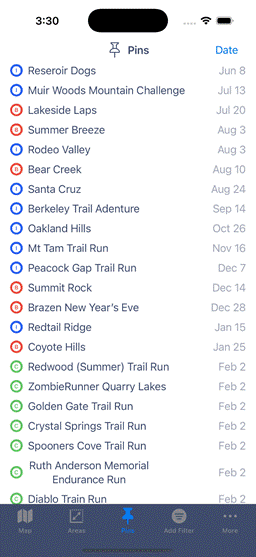
Pin List
View The
Pin list view lists all Pins. You
can filter the Pins using the Edit Filter view by tapping on Add Filter
in the tab view. If a filter is
already applied tap on Edit Filter on the tab view. By
default, the event date for each pin is included in the list. To change this, tap on the date then select
one of the other metrics.
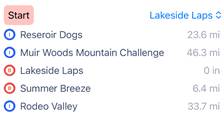
Date – Event Date Days - Number of days
until the event Drive
Distance
– Route distance to the pin Drive
Time
– Route drive time Direct
Distance
– Direct distance to the pin For
distance and time metrics the start location will be your current
location. A picker is displayed to
enable you to select a Pin to use as the start location.
|
|
|
Pin
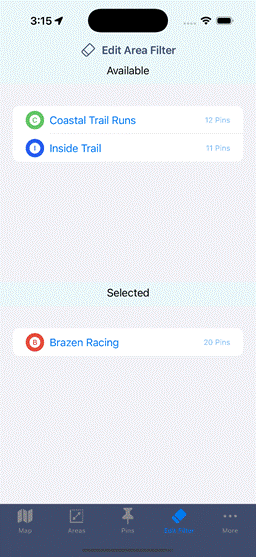
Filter View Tap
on Add Filter (or
Edit Filter) in the tab view to display the Area Filter. Select one
or more areas to use as a filter by tapping on the area(s) in the Available
list. When a
filter has been selected the caption in the tab view will be Edit Filter.
When a
filter has been selected the Pins will be filtered in the Map view, Areas view and Pins view. |